This section shows how to modify the machine selection module for AbrasiveJet Cut (which is copied from Laser Cut—see ), so that it mimics Waterjet Cut. The section also illustrates further customizing machine selection to prefer user-defined machines.
This section covers the following topics:
For more information on machine selection, see Machine Selection in the chapter Working with Cost Model Logic.
Removing unwanted machine checks
Suppose that we want any machine selected for AbrasiveJet Cut to pass the following two checks in order to ensure that the current part fits on the selected machine:
-
Maximum part width check: blank width is less than or equal to the machine’s maximum bed width.
-
Maximum part length check: blank length is less than or equal to machine’s maximum bed length.
In addition, let’s say that we want machine selection to do the following:
-
Select the default machine if it passes these checks.
-
Select the machine with the lowest overhead that passes the tests, if the default machine does not pass these checks.
Laser Cut machine selection is very similar. The difference is that Laser Cut machine selection includes two additional checks, a maximum thickness check and a minimum thickness check. AbrasiveJet Cut has related checks, but they are performed in the feasibility module, since they depend on criteria that are independent of any particular machine’s characteristics (see Adding Feasibility Rules).
Follow these steps to modify machine selection for the AbrasiveJet Cut process in order to eliminate the unwanted checks:
-
In the navigation pane, expand Processes, GCDs & Operations and double-click the AbrasiveJet Cut process.
-
In the editing pane, select the CSL tab, and click on the folder icon,
 , next to machineSelectionRule.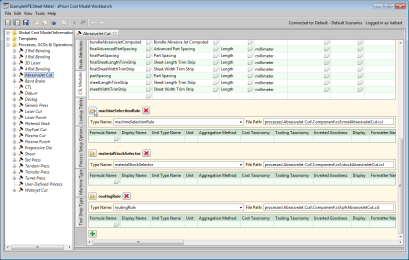
The module text appears in the editing pane.
In this example, the module is new, and so is editable without an explicit override. For inherited modules, you must select Override Object from the Edit menu, or click the override icon,
 , in the toolbar.


-
Remove
and MaxThicknessCheck and MinThicknessCheckfrom the query expression at the beginning of the module, resulting in the following formula:Copymachine = select first(m) from machines m _
where MaxPartWidthCheck and MaxPartLengthCheck _
order by isDefaultMachine(m) desc, overheadCost(m)This query orders the feasible machines by the result of
isDefaultMachine(a function defined below the query in this module). The result ofisDefaultMachineis eithertrueorfalse. In the ascending order for boolean values,falseprecedestrue, so the order is specified as descending. That way the default machine (the one for whichtrueis returned) appears first, and the rest of the machines (the ones for whichfalseis returned) follow it in the ordering.Within that ordering, the query orders the machines by the result of overheadCost (another function defined below the query).
The query selects the first machine in this overall order: the default machine if it is feasible, and the one with the lowest overhead otherwise.
-
Remove all the code following the two rules referred to by the query, resulting in the following code for the whole module:
Copymachine = select first(m) from machines m _
where MaxPartWidthCheck and MaxPartLengthCheck _
order by isDefaultMachine(m) desc, overheadCost(m)
isDefaultMachine(m) = (m == defaultMachine)
//account for both types of machine/overhead cost in the system
overheadCost(m) = _
( m.workCenterLaborRate * m.workCenterOverheadMultiplier ) + _
m.workCenterOverheadRate
Rule MaxPartWidthCheck: blank.serWidth <= m.bedWidth
Message MaxPartWidthCheck: m.name + _
' is not feasible. The blank width (' + roundBlankWidth + _
' mm) is greater than max bed width of the machine (' + _
machineBedWidth + ' mm)'
roundBlankWidth= roundEps(blank.serWidth, 0.01)
machineBedWidth = m.bedWidth
Rule MaxPartLengthCheck: blank.serLength <= m.bedLength
Message MaxPartLengthCheck: m.name + _
' is not feasible. The blank length (' + roundBlankLength + _
' mm) is greater than max bed length of the machine (' + _
machineBedLength + ' mm)'
roundBlankLength= roundEps(blank.serLength, 0.01)
machineBedLength = m.bedLength -
Select Save from the File menu, or click
 in the toolbar, to save your changes.
 -
To incorporate your changes into the cost model, select Publish Cost Model and Digital Factory from the File menu, or click
 in the toolbar.


For more information on CSL, see CSL Language Overview in the chapter Working with Cost Model Logic.